Android SDK
1. Configuration files
1.1 Project/build.gradle
In your Project/build.gradle add the following lines:
dependencyResolutionManagement {
  repositories {
    mavenCentral()
    maven {
      url 'https://raw.githubusercontent.com/wonder-sources/WonderPayment-Android/master'
    }
  }
}
1.2 Project/app/build.gradle
In your Project/app/build.gradle add the following lines:
dependencies {
  implementation 'com.wonder.payment.sdk:wonderpayment-android:v1.x.x'
}
1.3 AndroidManifest.xml
In your AndroidManifest.xml add the following lines
<!--    WeChat Pay   Create an empty Activity in the application package name directory -->

<activity-alias
    android:name=".wxapi.WXPayEntryActivity"
    android:exported="true"
    android:targetActivity="com.wonder.payment.sdk.wxapi.WXPayEntryResultActivity" />

    <!--    Alipay Auto Debit    -->
 <activity
     android:name="com.wonder.payment.sdk.activity.AlipayResultActivity"
     android:exported="true"
     android:launchMode="singleTask"
     android:taskAffinity="${applicationId}"
     android:theme="@android:style/Theme.Translucent.NoTitleBar">
     <intent-filter>
         <action android:name="android.intent.action.VIEW" />

         <category android:name="android.intent.category.DEFAULT" />
         <category android:name="android.intent.category.BROWSABLE" />

         <data
             android:host="alipay"
             android:scheme="paydemo" />
     </intent-filter>
 </activity>

 <!--    Payme    -->
  <activity
     android:name="com.wonder.payment.sdk.activity.PaymeResultActivity"
     android:exported="true"
     android:launchMode="singleTask"
     android:taskAffinity="${applicationId}"
     android:theme="@android:style/Theme.Translucent.NoTitleBar">
     <intent-filter>
         <action android:name="android.intent.action.VIEW" />

         <category android:name="android.intent.category.DEFAULT" />
         <category android:name="android.intent.category.BROWSABLE" />

         <data
             android:host="payme"
             android:scheme="paydemo" />
     </intent-filter>
   </activity>
1.4 proguard-rules.pro
If code obfuscation is enabled in your project, please add the following configuration in your proguard-rules.pro configuration file
-keep class com.wonder.payment.sdk.** { *;}
-keep class com.google.gson.reflect.TypeToken { *; }
-keep class * extends com.google.gson.reflect.TypeToken
2. Initiate the SDK
To initiate the SDK, customer needs know:
-
Set Up the Payment Configurations. Retrieve
appIDas a first step when initiating the SDK when you onboard on Wonder, in order to get access to our Payment Gateway configurations. For specific methods such as Apple Pay, Google Pay, Wechat Pay, you will be required to apply directly with the schemes in order to obtain the unique identifier, for the activation of those methods. -
To set up a method for future payments, you must generate a
customerIDfor Tokenisation process. -
Customer can opt to customise the UI of the payment elements, or follow the default UI settings.
2.1 Payment configuration
WonderPayment.initConfig(
  PaymentConfig(
    appId = "f3615c8b-e402-48ac-bcd9-5af7a473ebdc",
    customerId = "87d8f5a5-e745-456d-938e-065bb77cedc7",
    environment = PaymentEnv.STAGING,
    locale = Locale.US,
    fromScheme = "paydemo",
    wechatAppId = "wx5ac0eb5676b32e80",
    googleConfig = GoogleConfig(
        countryCode = "HK",
        currencyCode = "HKD",
        merchantId = "BRC2DN4H8T7I76EZ",
        merchantName = "Jek Limited"
    ),
  ),
  UIConfig(
    background = Color.BLACK,
    secondaryBackground = Color.LTGRAY,
    primaryTextColor = Color.WHITE,
    secondaryTextColor = Color.LTGRAY,
    primaryButtonColor = Color.BLUE,
    primaryButtonBackground = Color.BLACK,
    secondaryButtonColor = Color.GREEN,
    secondaryButtonBackground = Color.WHITE,
    textFieldBackground = Color.DKGRAY,
    linkColor = Color.BLUE,
    successColor = Color.GREEN,
    borderColor = Color.CYAN,
    dividerColor = Color.RED,
    errorColor = Color.RED,
    borderRadius = 12.0f,
    displayStyle = DisplayStyle.ONE_CLICK,
    showResult = true,
    paymentRetriesEnabled = true
  )
)
2.2 UI configuration
PaymentConfig class
| Variable | Type | Required | Description |
|---|---|---|---|
| appId | String | Y | The APP ID Generated from New Api credential on Wonder Dashboard |
| customerId | String | N | This field is needed if customer would like to access to tokenisation feature. User can create the customerId by calling the Create Customer API. Refer to : https://developer-stage.wonder.today/doc/openapi/customer |
| environment | enum | Y | The environment of the payment SDK. Available options are:.staging, .alpha, .production |
| locale | String | N | Localised language that the app is opened in. Available options:.zh_CN .zh_HK .en_US |
| fromScheme | String | Y | Used to redirect back to the customer’s app after app-to-app call payment is completed. |
| wechatAppId | String | N | The appId applied on WeChat pay, the merchant need to give it to our side for WeChat Pay configuration. |
| googleConfig | GoogleConfig | N | Refer to the below configs if customer wants to enable Google Pay payment. |
| GoogleConfig.countryCode | String | Y | ISO 3166-1 alpha-2 country code where the transaction is processed. |
| GoogleConfig.currencyCode | String | Y | The ISO 4217 alphabetic currency code. |
| GoogleConfig.merchantId | String | Y | A Google merchant identifier issued after registration with the Google Pay & Wallet Console. |
| GoogleConfig.merchantName | String | Y | Merchant name encoded as UTF-8. Merchant name is rendered in the payment sheet. |
UIConfig class
| Variable | Type | Required | Description |
|---|---|---|---|
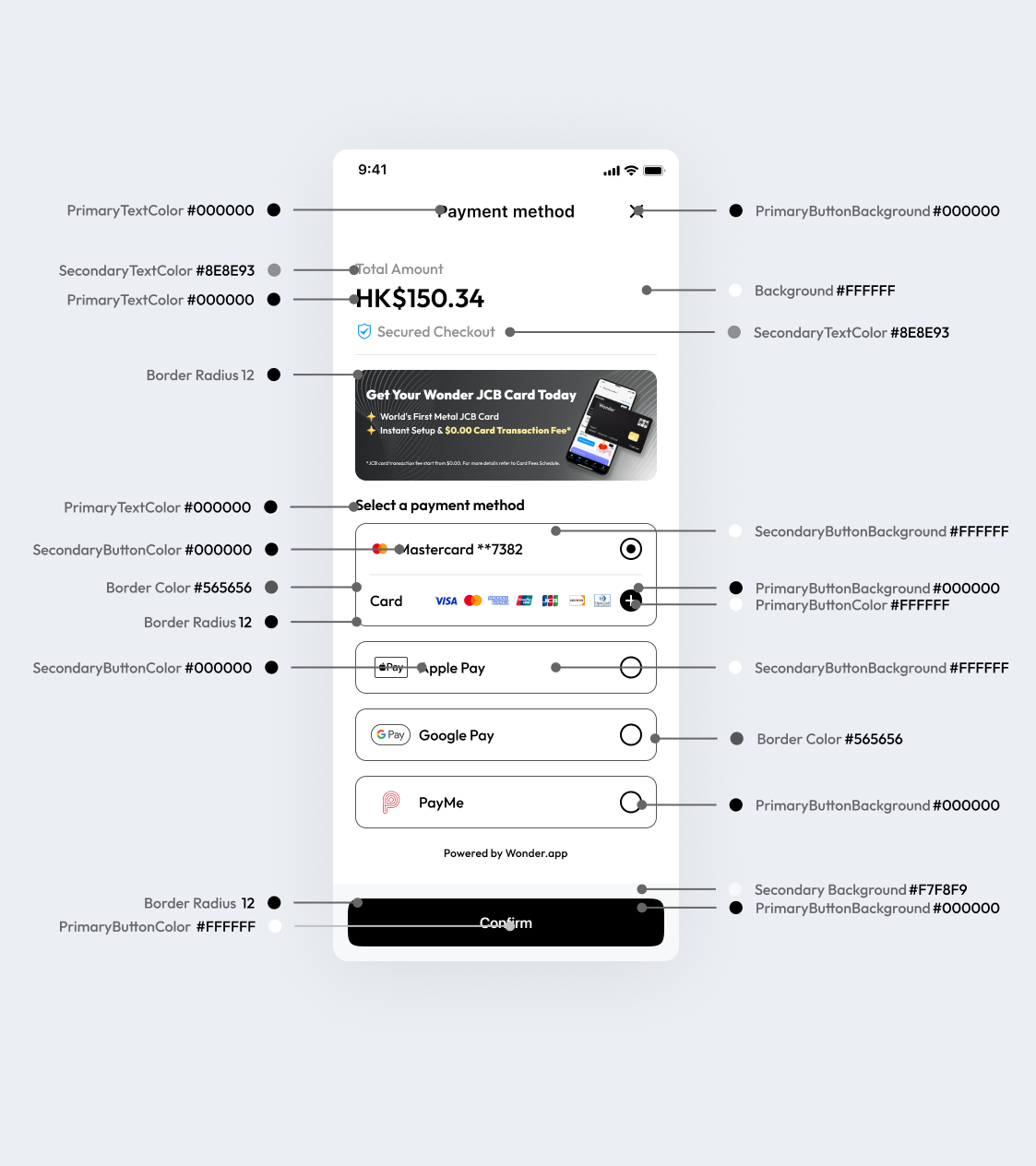
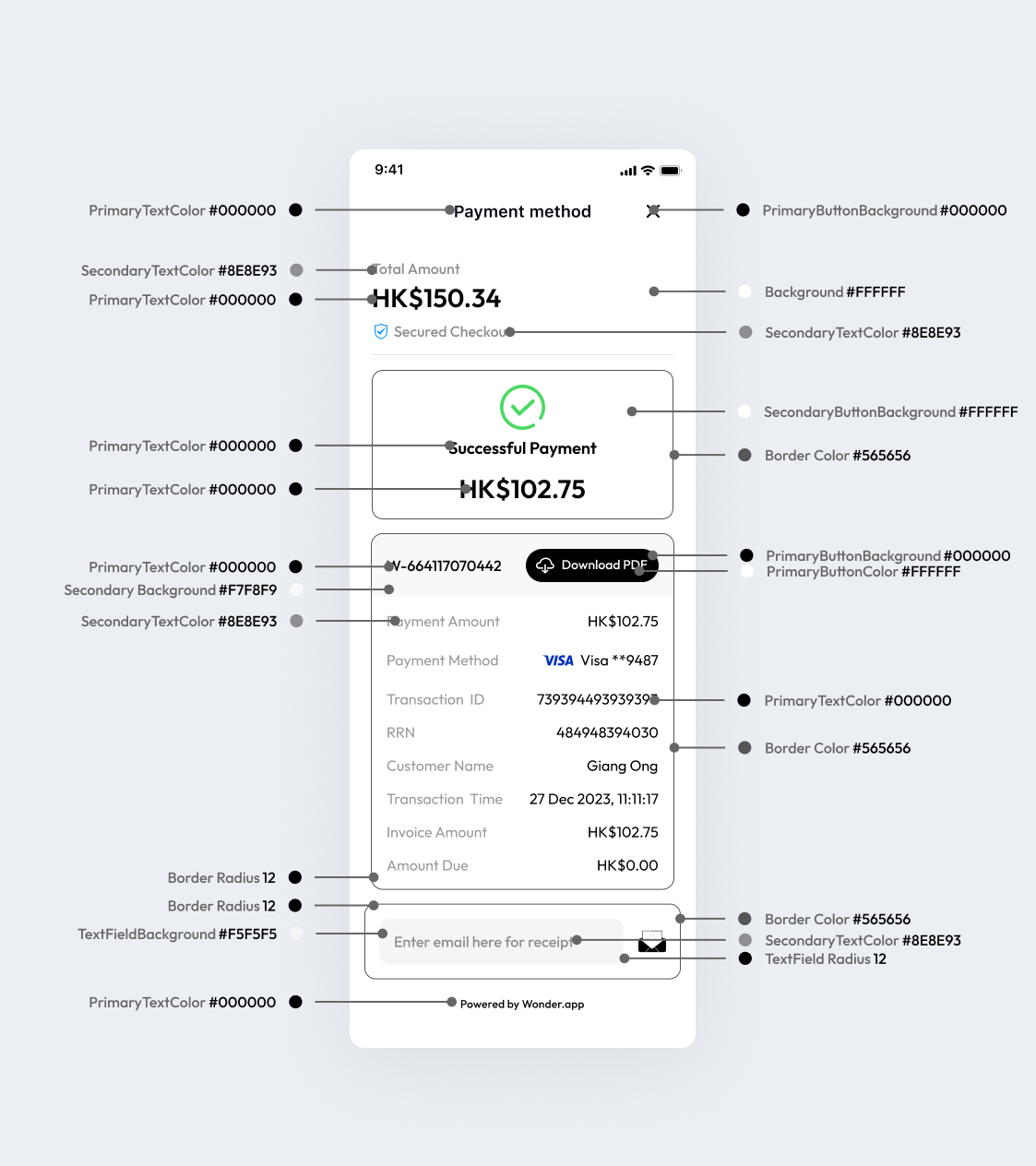
| background | Color | N | Default data: #FFFFFF |
| secondaryBackground | Color | N | Default data: #F7F8F9 |
| primaryTextColor | Color | N | Default data: #000000 |
| secondaryTextColor | Color | N | Default data: #8E8E93 |
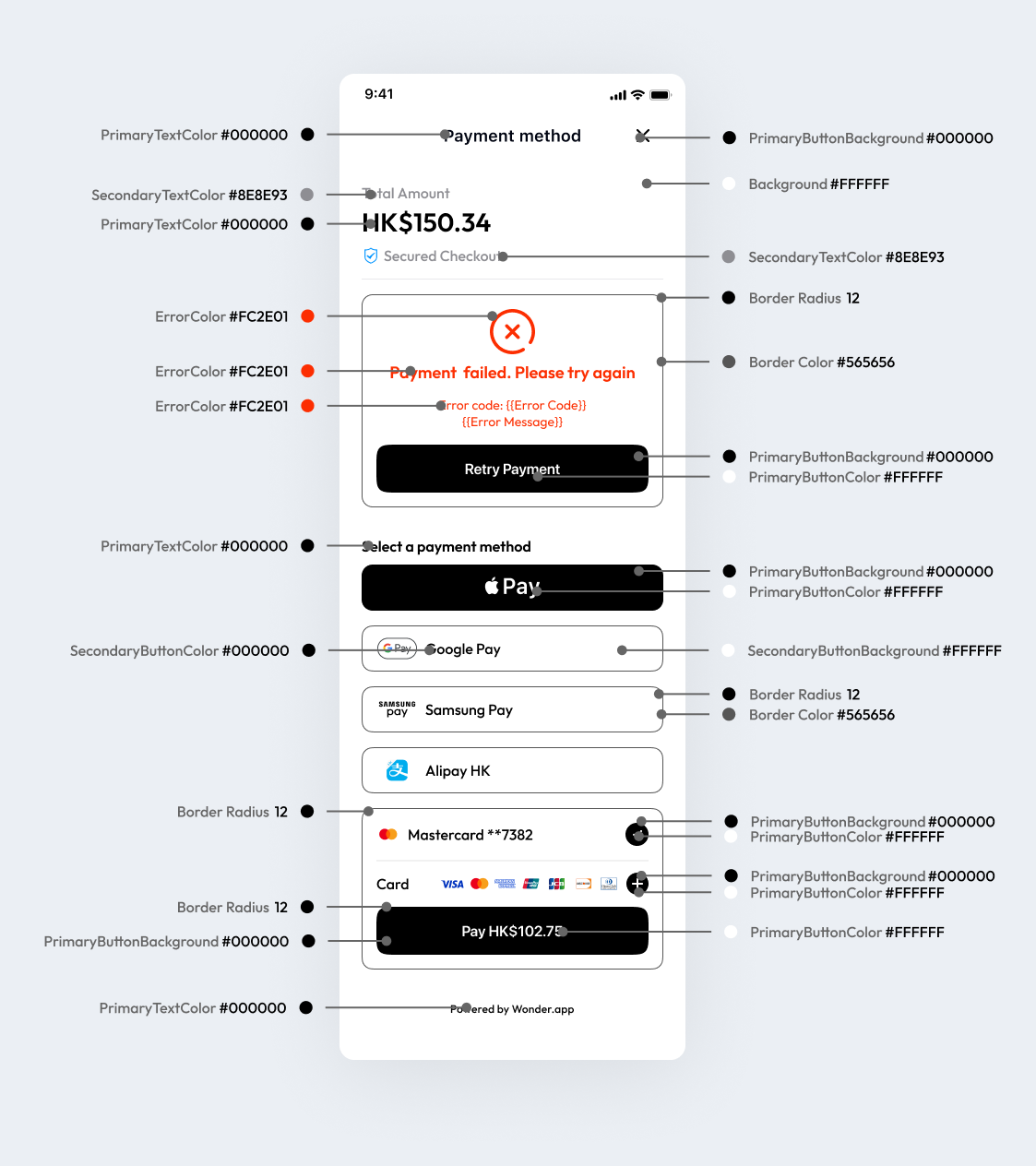
| primaryButtonColor | Color | N | Default data: #FFFFFF |
| primaryButtonBackground | Color | N | Default data: #000000 |
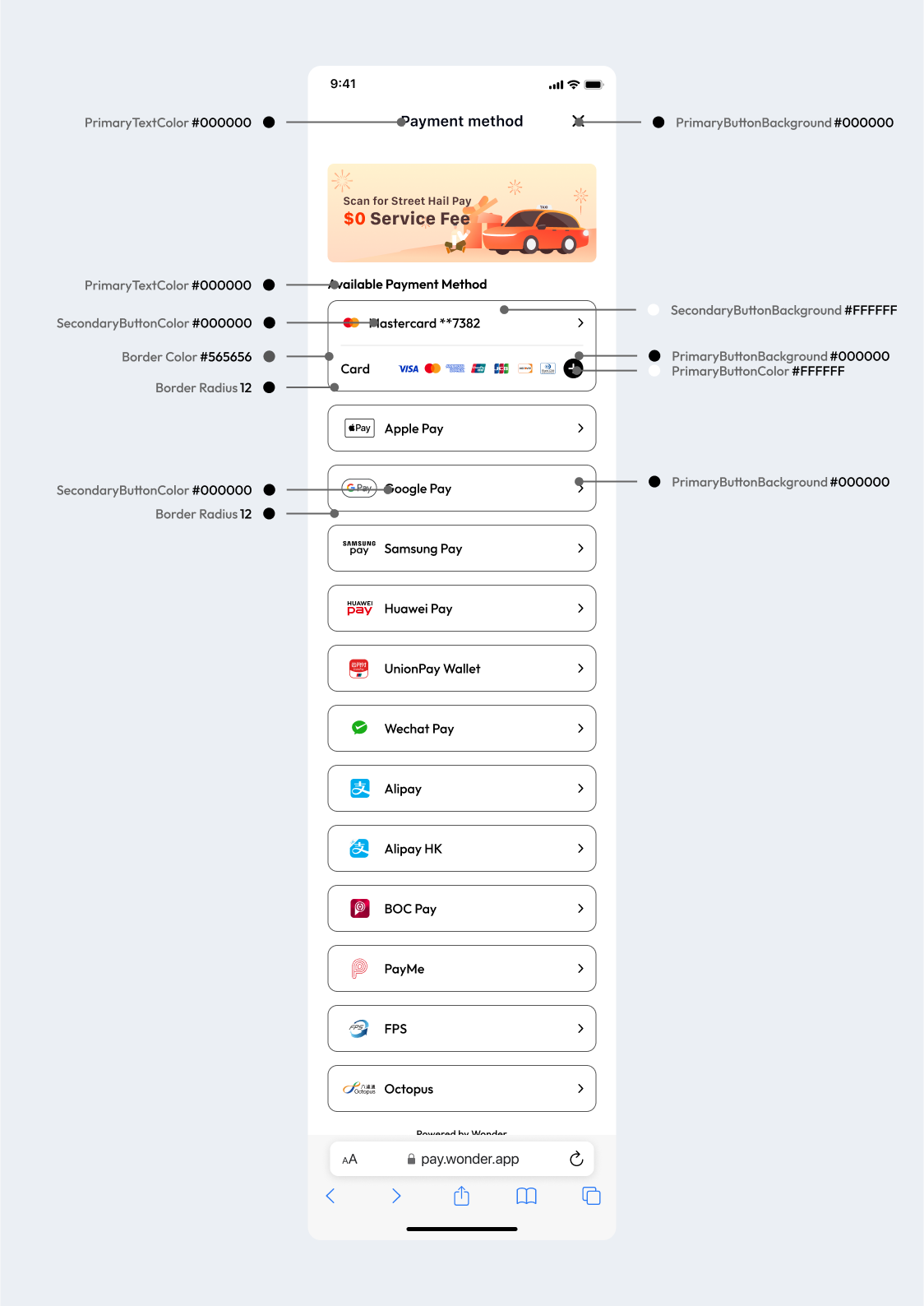
| secondaryButtonColor | Color | N | Default data: #000000 |
| secondaryButtonBackground | Color | N | Default data: #FFFFFF |
| textFieldBackground | Color | N | Default data: #F5F5F5 |
| linkColor | Color | N | Default data: #0094FF |
| successColor | Color | N | Default data: #4CD964 |
| borderColor | Color | N | Default data: #565656 |
| dividerColor | Color | N | Default data: #EBEFF2 |
| errorColor | Color | N | Default data: #FC2E01 |
| borderRadius | float | N | Default: 12.0f |
| displayStyle | enum | N | User can choose how the general UX flow of the payment selection process on Wonder pre-built payment page. Options: confirm, oneClick.Default data: oneClick |
| showResult | boolean | N | This is to set if customer would like to determine that, upon payment result is returned, the flow should be redirecting back to Wonder pre-built payment result page or not.Default data: true |
| paymentRetriesEnabled | boolean | N | This is to define if payment is failed, can user try again or return failed result |
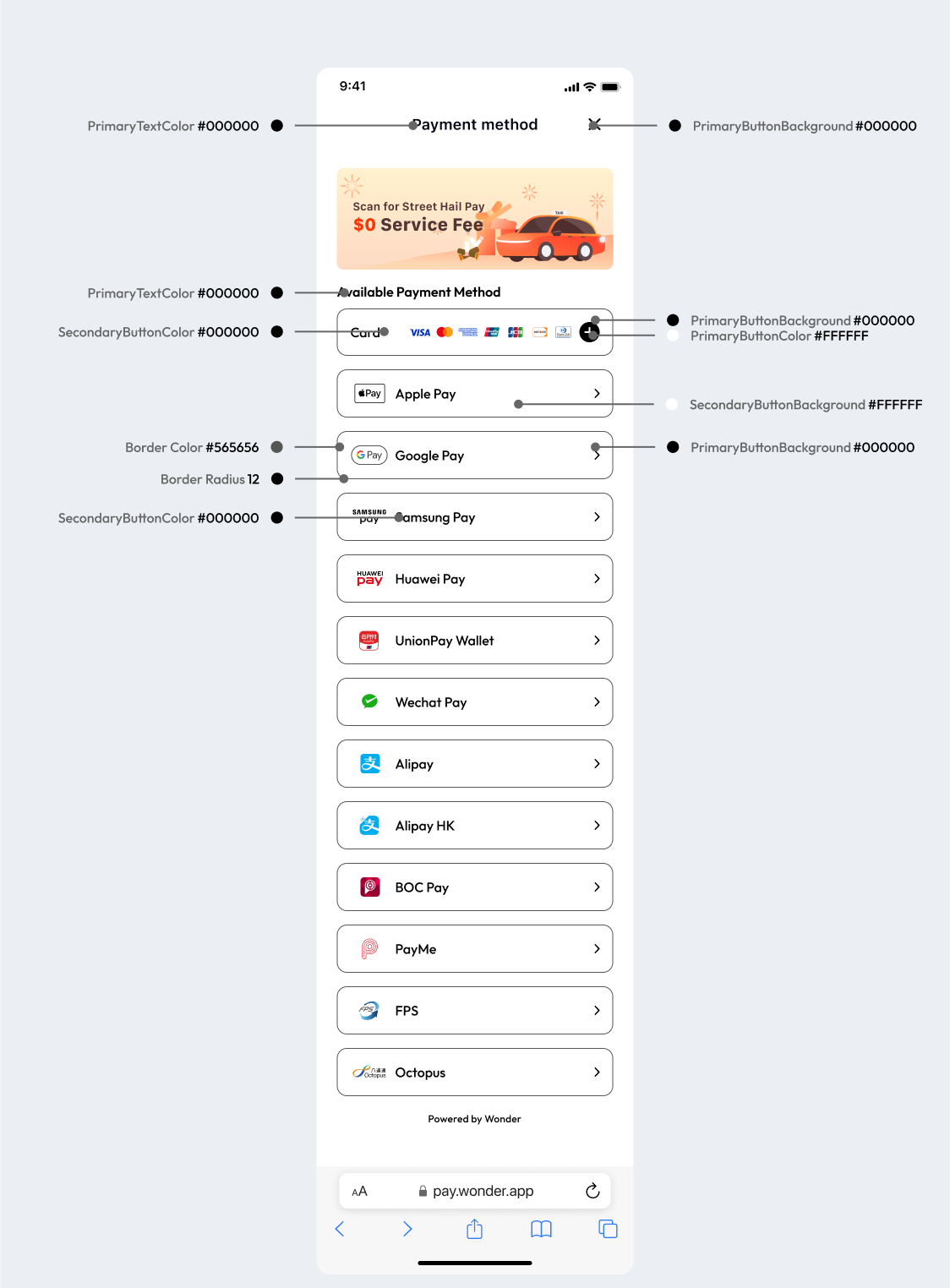
3. Payment
3.1 Complete payment flow
Initialize Payment Intent, and Complete Payment Immediately
Upon successful SDK configuration set up, the customer can initialize and open Wonder pre-built payment session for every payment intent. The app user can select the pre-enabled payment options in the pre-built UI page to complete the payment. This flow is to trigger and complete payment continuously in one flow.
WonderPayment.present(
  this@MainActivity,
  PaymentIntent(1.0, "HKD", "orderNumber"),
) {
    Toast.makeText(this@MainActivity, it.toString(), Toast.LENGTH_LONG)
        .show()
}
3.2 Alternative payment flow
Alternative Flow - Initialize Payment Intent, and Pay Later
Alternatively, the customer can choose to initialize the payment intent, and save the payment method option, and then pay later during the checkout process. This is suitable for customer that wishes to let their payer to pre-choose the default payment method first (step 1), and then complete payment later (step 2).
Step 1: Select payment method

WonderPayment.select(this@MainActivity) {
    //paymentMethod
}


Step 2: Start the payment process

paymentController = WonderPayment.pay(
    this@MainActivity,
    PaymentIntent(
        0.1,
        "HKD",
        "orderNumber",
        paymentMethod
    ),
) {
    //PaymentResult
}
Integrate third-party payments to get payment results
// Use paymentController = WonderPayment.pay to add
override fun onActivityResult(requestCode: Int, resultCode: Int, data: Intent?) {
    super.onActivityResult(requestCode, resultCode, data)
    paymentController?.onActivityResult(requestCode, resultCode, data)
}
3.3 Preview payment method
View your current payment method and add a verified credit card
WonderPayment.preview(this@MainActivity)
3.4 Class Definition
[PaymentIntent]
| Variable | Type | Required | Description |
|---|---|---|---|
| amount | double | Y | Order amount |
| currency | string | Y | Order currency |
| orderNumber | string | Y | Order number |
| paymentMethod | PaymentMethod | N | When calling the present method, there is no need to pass the payment method. However, when calling the pay method, you need to specify |
| supportedPaymentModes | [PaymentMode] | N | Currently supported PaymentMode array. PaymentMode enumeration value: preAuth|autoDebit|sale |
| lineItems | [LineItem] | N | Details |
[LineItem]
| Variable | Type | Required | Description |
|---|---|---|---|
| purchasableType | string | Y | Item type,eg. Reward,Tip |
| purchaseId | int | N | ItemId |
| quantity | Int | Y | Item quantity |
| price | double | Y | Item unit price |
| total | double | Y | Item total amount |
Present result object [PaymentResult]
This section presents the result of the payment intent.
| Variable | Type | Required | Description |
|---|---|---|---|
| it | class | Y | PaymentResult.Completed, PaymentResult.Failed, PaymentResult.Canceled |